Category: Blog

Tech Tools Blog

  • Rescue Time Sneak Peak

    Sneak Peak of the time tracking capabilities of Rescue Time

    I posted on Facebook about a new  productivity tool that I have been using to track my time. I first need to give a shout-out to April Holle at Made Better Studios for this tidbit of information.  She shared this golden nugget with me (as well as many others over the past year).  Thanks again April, for sharing this awesome tool!   There seemed to be quite a bit of interest on the topic, so I decided to blog about it.  Here is the first sneak peek of my journey into using Rescue Time.


    Productivity by Day Chart

     The first chart below shows my productivity throughout this past week. I am able to adjust the settings in Rescue time so that it knows what websites to consider Very Productive, Productive, Neutral, Distracting, or Very Distracting.

    Efficiency Chart

    This graph above shows how efficient I was with my time in comparison to all of the other “Rescue Timers” out there.  (Yes, I am an over achiever)


    EfficiencyThis tells me when I am most efficient, what hours of the day as well as what days of the week.

    There is so much more to this tool that I will blog about at a later time.  Stay tuned for more information.  And if you want to check it out, go give them a look at rescuetime.com. 

  • WordPress Humor – “WordPress on the Street”

    The organizers of WordCamp Phoenix 2013 decided to interject a little WordPress humor into the opening session of the event.  This video was created by the Gangplank Studios initiative from Gangplank Chandler.  What is WordPress? What is the difference between a post and a page?  What would you do with a widget?  All of these questions will be answered, some serious and some with a flavor of WordPress humor that only a WP fanatic would appreciate.  Enjoy!

    Tell us what you think of the video.


  • Facebook Timeline For Businesses

    Facebook Timeline For Businesses

    The only thing certain in our world is that change will happen.  Once again, Facebook is changing the business pages to include the timeline similar to the current personal profiles.  These changes were announced yesterday, are available now and will become the default page view on March 30th.  If you manage a business page, don’t delay, March 30th will be here before you know it.


    Changes to Facebook Business Pages

    Default Landing Tab — There is no longer a default landing tab.  Every visitor (fan or not) lands on your timeline.  Some are questioning whether this will make “fan gating” (hiding certain information from non-fans) irrelevant.  Facebook insists that hiding coupon codes will still be useful strategy with fan-gating as a way to increase “likes”.

    Timeline Cover Photo — The most obvious aesthetic change is the timeline cover photo.  Facebook has made it clear that there are certain restrictions regarding the content on this cover.  The cover is not allowed to show any specials or call’s to action.  The text on the cover photo should be minimal.  They even state that you cannot have your website address, email address and no arrows pointing to like buttons.  They want the cover photo to be visual and clean (without spammy content).  For those who need to know, the image size is 851 X 315.

    Where did the tabs go? — The tabs are now called “apps” and are found under the timeline cover photo.  The facebook photo app defaults as the first app.  The remaining 3 apps can be custom apps (formerly tabs)


    Feature Apps — Since the “tabs” have moved under the cover photo, there is limited real estate for the tabs.  If you click the down arrow to the right of the apps, you will see all of the apps installed on the page.  But many users will not know to do this, nor will they take the time.  It is therefore important to showcase the top 3 apps immediately under the cover photo.  (Note, the image size for the “app photos” is 111 X 74.)

    More Real Estate

    The new timeline and the “apps” (formerly called tabs) give more real estate for your information.  The new format at 810 provides more room to design custom apps (tabs)  that truly resemble a mini website.  The old style tab at 520 still displays, but it is not centered.  Old tabs should be resized to fit the new 810 format. (click the images below to enlarge)


    Reveal/Hide (Fangating) — Reveal/hide is still possible with the custom apps, but may take a back seat given that there is no longer a default landing tab for each page.  A useful strategy would be to create a custom app and if it is not featured in the top three, you can post it on your time line and pin it to the top of the timeline.  That custom app could have a fan reveal section that only fans can see after they like your page.

    In summary, it is early and these changes have only been out for 2 days.  Information will continue to trickle out regarding these important new changes to Facebook Business Pages.   There are reports that the Facebook engineers are working on a bug with the like button on the new timeline.  For those wanting to make the switch, but nervous about the bugs, I would advise waiting a week or two to implement these new changes.  Remember to act pro-actively.  These changes will be automatically made on March 30th so don’t delay.  Make sure your business has their best face forward on their business timeline.

  • Taming the Email Beast

    Taming the Email Beast


    Editors Note — Many of the tips and tricks that I will share throughout the series will be specific to users of gmail.  I am an avid gmail fan and use the professional google apps version for my business.  When possible, I will give options for other email platforms.  


    Taming the Email Beast

    You have 100 new messages“.  Sound familiar?  Remember when email was new and you got excited to see a new message.  AOL had that voice notification, “You’ve got mail” that was was made famous by the Meg Ryan/Tom Hanks movie of the same name.  In 1998, it was exciting to get mail and to hear those 3 little words.  I daresay that times have changed.  A more likely scenario might be, “You’ve got 101 new messages” and that is taking just a one hour lunch break.  So how do you tame the email beast?  This post is the beginning of a series of posts on how to harness that email and wrestle control once again.  Enjoy!

    Create a Delayed Delivery Email

    If you are like me, you use your email inbox as a “to do” list.  For me, it is the first thing I check in the morning and the last thing that I check before bedtime.  If someone asks me for something, I will often ask them to email me exactly what they want.  My email is my organization tool for my business.

    The downside of having email be such a key part of your organization strategy is that it can “take over” and become a beast.  Have you ever gotten an email and thought, “I really need this email, but I wish it would go away and just come back next week when I am working on that project”.  Well guess what, that can happen.  Through a service called “lettermelater.com” you can schedule an email to be delivered at any point in the future that you specify.  Once you sign up for a free account, you can log into schedule these emails.  However, the easiest way that I have found to do this is directly from my email program.  Below is a sample email that I composed that will be delivered later via this handy service.  If this were an email already in my inbox, I could have simply forwarded that email just as shown below.


    Once sent, you will get a confirmation email that will tell you if the email was sent.  See below.


    This trick helps me keep my inbox manageable and each email becomes a “to do” list item as it arrives.


    Outlook Option

    If you are an outlook user, one of the little known tools in outlook is a feature that will allow you click a new calendar item or a to item in you outlook through drag and drop.  Simply drag the specific email to the calendar or Task area and it will open a new task or calendar item with the details included.


    Happy Emailing!

  • Finding Peace Amidst A Chaotic Life

    Finding Peace Amidst A Chaotic Life

    What do you do when you get stressed out? Everyone operates just a bit differently and it is so important to know what makes us tick and what keeps the clock from exploding. I’ve been quite busy lately with some pretty big projects and my stress is definitely up a notch.

    Meet Romeo. Romeo is our 11 month old miniature poodle who came to us through a local rescue. I am very fortunate to be able to work at home and have access to my “furry stress management device” all day long. There are times when I pick him up and hold him in my lap as I work. At other times, I open the office door (which opens to my backyard) and I throw the tennis ball out into the yard and we have a great game of fetch.

    We all need to find ways to regulate our state of mind. Whether it be a picture of family, a squeeze ball, a Starbucks, or a pet, we all need to know what can calm us.

    And for all of you business owners and managers out there… consider having a “bring your pet to work day”. It might be interesting to see what it does for staff morale.

  • Video Email…Bringing Back the Personal Touch

    Video Email…Bringing Back the Personal Touch

    How many times have you written something or read something that was intended one way, but interpreted another way.  Don’t get me wrong… email is awesome.  It has become my own personal “to do list”.  I even send myself email reminders scheduled for future dates and times telling me not to forget something (more on that in a future post).

    Email can be an amazing organization tool and can increase efficiency.  But in the midst of it all, I can’t help but wonder if we have lost the person behind the message.  This thought process led me to a little known service called eyejot that allows me to send video email messages to friends, clients, and colleagues.


    Here is how it works: 

    I log into my account at eyejot and record a video with my webcam.


    After clicking “compose message”, I get the following screen allowing me to record my message straight from eyejot.


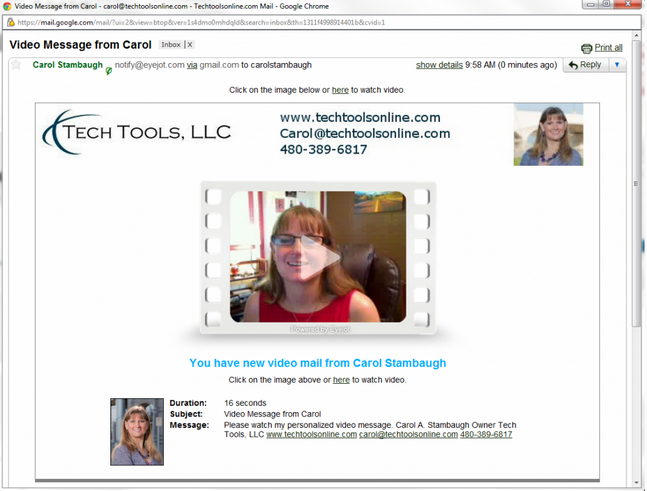
    After pressing send, the recipient receives the following email that I have branded specifically for me.


    When they click the play button, it opens the following webpage.  This webpage is also customized and branded to meet my needs.

    Videos can also be embedded into web pages.  Below is the video as recorded for this demonstration.

    One last thing you can do with eyejot is to record a welcome message and embed it into your contact page so that people can send you video messages as well.  Below is a screenshot of my video contact page on my website.

    In closing:

    There are a couple of things to consider when selecting a video email messaging system for you.  There are several products out there that come in at all levels of pricing.  Eyejot has a free version, but that does not allow for the customized branding.  The version of eyejot that I use is a paid version and was at the right price point to meet my needs. It is one of the more modestly priced services and because of that, it is co-branded with no ability to remove the eyejot logo.  There are other services that allow exclusive branding, but you will pay more for those services.

    It takes a little bit of time to customize the email and the website landing page to include your logos and your branding.  However, once you have it done… it’s done.  Another thing I have found is that using eyejot seems more stable in firefox than chrome.  I am a chrome girl (for the time being), but when I try and use eyejot in chrome, I have problems with the flash.  Firefox is steady so I simply compose all video messages in firefox.

    Happy video messaging everyone!!!!


  • Project Management Made Easy

    Project Management Made Easy

    There are a bazillion different project management tools on the market these days.  You can spend a bundle of time and money getting up to speed on many of the most complex tools.   What I love about Manymoon is that it is affordable, simple and easy to get started.  I had the opportunity to help train an association who is new to Manymoon last week.  I created some tutorial videos specific for their needs and got into the video spirit.  So here is a very quick video blog about why I love Manymoon and cannot imagine working without it.  One additional thing worth mentioning is that in addition to the affordability, the support is amazing.  Great job to all those over at Manymoon!  (Ahhhhh, now I can check off that overdue task that says, “Blog about Manymoon”)

    Until next time,

    Carol

  • Unplugged

    Unplugged

    It is no accident that I started Tech Tools.  I jokingly refer to myself as “The Accidental Geek”, but it really isn’t an accident.  You see, I LOVE techno toys.  And it’s not just techno toys like “Best Buy” tech toys.  I love tech solutions.  Therefore, it is most natural that I landed right here where I am supposed to be.  So for the person who loves her technology way too much, I cannot remember going without my cell phone for more than one night for the past 5 or 6  years… until this past weekend.

    One of the things that we love to do as a family is to escape the heat and craziness of Phoenix and head up to the beautiful mountains of AZ.  It is always nice to get away from the “brown cloud” and enjoy the immense beauty of the stars lined with pine trees.  We’ve been doing this for a couple of years, and it is very rare that we don’t have some semblance of cell phone service allowing me to check in periodically.  This weekend, I forgot my power cord.  So I turned off the phone, put it in the glove box and left it there for 2 full days.  HORRORS of all horrors, I know.  Guess what, I survived.  And you know what else, everyone else who might have tried to get a hold of me over the weekend also survived.  And surprisingly, I didn’t even miss it.  Perhaps this is an experiment worth repeating.  So, if you try and email or “facebook” me one weekend and I don’t reply, take heart.  I just decided to unplug for the weekend.  I’ll plug back in first thing Monday morning.  What started as an accident turned into a blessing.  I encourage each one of you to try it sometime.

    Plugged back in and having a blast,
    Carol

    PS.  Photo courtesy of Chris Frailey Photography.  This photo was taken during my “unplugged” weekend.  This is near Woods Canyon Lake, elevation 7,500 foot located on top of the Mogollon Rim in eastern AZ.

  • Time Goes By…

    Time Goes By…

    But I’m on top of it with Google calendar.  If someone stuck a gun to my head and said that I could only choose one web application to have for the rest of my life, it would be Google calendar.  Now I cannot imagine anyone ever doing so, but if they did, it would be a tragic day for someone like me.

    What I love about Google calendar is, well, to be honest, there are so many things to love that I can’t decide.  So let me start with a list:

    • Multiple Calendars — You can create multiple calendars (work, personal, training program, etc.) and they will be color coded.  Show one or all calendars in your window by simply clicking the calendar on the left.
    • Sharing Calendars — “Who’s picking up the kids?”  “What activity do we have tonight?”  Share your Google calendar with friends/family and keep everyone in the know.  And choose which of your calendars to share so that they don’t have access to everything, but just certain things.
    • There is a special calendar “lab” feature called World Clock.  It is amazing.  When Google creates new “add-ons” to their products, they often release it in an “experimental lab” under the settings tab.  If you click “settings” and then “labs”,  you will find many different “add-ons” to truly jazz up your experience.   I love the World Clock.  I often have conference calls with people from all around the country and this helps me keep the time zones straight.  When I click on 3:oo in AZ, the world clock shows me that it is also 2:oo in Alaska, 4:00 in the Mountains, 5:00 Central and 6:oo Eastern.  No more guessing and calculating time zones in my head.  (Ya’ know, it’s the smaller things in life that just make my day!)
    • Another thing that I love about Google calendar is it’s ability to work with other applications.  I am able to connect my Google calendar to third party applications and achieve lots of great mischief and mayhem.  More info on this later.

    If you haven’t given it a test drive, I encourage you to do so.  It is free and available with all regular Google accounts.  Check it out and tell me what you love about Google calendar, or any other calendar application.

    Have a fantastic week!  See you very soon…


  • Head in the Cloud Part 2

    Head in the Cloud Part 2

    Part 2

    Cloud computing is all around us.  More and more services are being driven “to the cloud”.  The downside (yes, there is a downside) is that we become reliant on the cloud for our data.  About 2 weeks ago when the Amazon Servers went down, it took out two of the services that I have come to rely on.  For this reason, it is important to have information locally, even if your head stays in the cloud most of the time.

    Now here are some of my other favorite cloud apps:


    Video Mail

    Email has become quite impersonal despite our attempts with the emoticons.   🙁  For this reason, I use a video email service called Eyejot.  There are different services out there, but Eyejot seemed to give me what I needed at the best price point.  When I make contact with a new client, I will send them a video message with a personal introduction from me to them.  This is not a standard youtube video, this is a unique message that I record just for that one person.  As many technology freelancers, I work from home and often find myself in front of the computer in shorts, t-shirt, and sometimes even a cap.  I had to get an extra brush, make-up bag and blazer for my office so I can do a quick makeover in case a video message is in order.  🙂


    Manymoon

    I use Manymoon as my project management system.  Because I am a premier google apps user, I am able to tie my Manymoon account to my google calendar and my google apps email.  Therefore, if an email comes in that needs to go into a new or existing project, there is an option embedded in the bottom of the email that allows me to save that email straight to Manymoon where I can track the progress, assign it to a team member and even report on the status and track the time sheet.


    Toggl

    In addition to Manymoon time tracker, I use Toggl as my primary time tracker for different projects.  It has a handy desktop window that pops up and I can simply click the red button to start time on any of my open projects.  Toggl will synchronize to the toggl website and through an API can even import the time into freshbooks.  (see below)


    Freshbooks

    This is a very handy invoicing system that allows you to track time per project, create estimates/bids, and then invoice based on the project.  A new addition to Freshbooks is the ability to accept paypal payments from clients at a very reasonable .50 per transaction.  Freshbooks also allows you to invoice by mail or email and your customers are able to log in to view, print or pay the invoice directly.  It’s a very slick program.


    Quickbooks Online

    There are a lot of new accounting programs out there that many people swear by.  Some of them include mint.com, indinero.com, and outright.com.  While I think that many of these have promise, I have opted to stick with the good old fashioned accounting program of Quickbooks.  Perhaps the fact that I have been using one version or another of Quickbooks for almost 15 years may have something to do with my attachment issues here.   The good news is that Quickbooks (QB) has an online version for the small business person/organization that is very affordable.  It also allows each user to add their accountant/bookkeeper as a user to the account at no charge.  This way, Catherine can keep me on my toes with regard to my quarterly taxes… Thanks Catherine.  🙂

    So I could probably go on and on about different cloud apps.  The purpose of this post (Part 1 and 2) was to give an example of how much of my life is indeed spent in the cloud.  Please follow along with me on this “Blogventure” and I will continue to share helpful and useful tips for making technology work for you.